About Gmod
Gmod is an MCP server published by mathis1M in the AI category: mCP for Garry's Mod.
The repository has 5 stars and 0 forks, with the last commit 2 months ago. Recent commit activity is the strongest signal that reported issues will get attention.
Install
claude mcp add gmod -- npx -y @mathis1m/gmod-mcpnpx -y @mathis1m/gmod-mcpThis server has no ConduID identity, so agent calls to it are not receipted. Pin the version you install and review the source before granting it credentials.
Tools (5)
exec_lua_codeExecute Lua code on the server or on a selected client.
Parameters not published.
gmod_entitiesList entities with optional class filters and limits.
Parameters not published.
gmod_playersList connected players and their server-side state.
Parameters not published.
gmod_screenshotCapture a screenshot from a selected player's view.
Parameters not published.
gmod_statusCheck whether Garry's Mod is connected.
Parameters not published.
Ask AI
Ask AI about Gmod
Powered by Claude · Grounded in docs
Security checks
Static checks derived from the repository 6 days ago. Heuristics on the source, not an audit.
- ✓README presentThe repository ships documentation.
- ✓License declaredUsable under a stated license.
- ✓Tests presentA test suite exists in the repository.
- ✓Dependencies pinnedA lockfile pins dependency versions.
- ✓No dynamic code executionSource scan found no eval, dynamic Function, or shell execution.
1 check has not been run yet.
Releases
README
GMod MCP
Table of Contents
Overview
GMod MCP connects AI agents such as Codex and Claude directly to live Garry's Mod sessions through the Model Context Protocol (MCP).
It combines an MCP server, a native bridge, and a Garry's Mod addon to make this connection possible.
You can use it for experimentation and fun, but it is also useful for addon development: an agent can test changes, execute Lua code, and capture screenshots to verify the result.
This was something I felt was missing from Garry's Mod, so I made it open source for anyone who might find it useful.
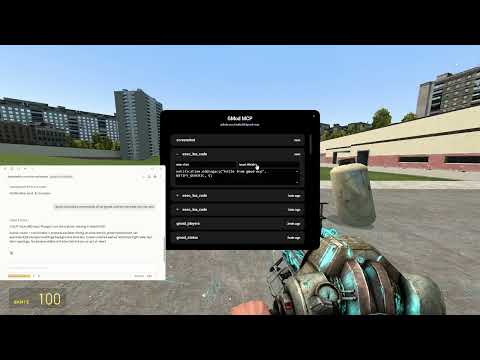
Demo Video
Usage
- Start Garry's Mod with the GMod MCP addon and native module installed.
- Start your configured AI client. It will launch GMod MCP automatically through
npx. - Wait for the MCP connection to become available.
- Ask the AI client to inspect or interact with the running game.
In-Game Menu
Type !mcp in chat or mcp in the Garry's Mod console to open the in-game menu:

Available tools include:
| Tool | Description |
|---|---|
gmod_status |
Check whether Garry's Mod is connected. |
gmod_players |
List connected players and their server-side state. |
gmod_entities |
List entities with optional class filters and limits. |
exec_lua_code |
Execute Lua code on the server or on a selected client. |
gmod_screenshot |
Capture a screenshot from a selected player's view. |
Client-side Lua execution and screenshots require a target player name, SteamID, or SteamID64.
Installation
Prerequisites
Before installing GMod MCP, make sure you have:
- Windows or Linux
- Garry's Mod installed
- Node.js 20 or later, including
npx - An MCP-compatible AI client, such as Codex or Claude Desktop
- Permission to copy files to your Garry's Mod installation directory
Bun and Rust are only required for development. They are not needed when using the published npm package.
Automatic Installation
Copy the prompt below and send it to an AI agent with access to your computer:
Install GMod MCP automatically by reading the "Manual Installation" section of https://github.com/mathis1m/gmod-mcp and following it.

1. Detect whether I am using Windows or Linux and identify the operating system architecture.
2. Download the latest release from https://github.com/mathis1m/gmod-mcp/releases/latest and choose the correct addon and native bridge files.
3. Install the GMod addon in the correct `garrysmod/addons/` directory.
4. Install the matching native bridge in the correct `garrysmod/lua/bin/` directory.
5. Configure the AI client I use with `npx -y @mathis1m/gmod-mcp`, without overwriting existing MCP servers.
6. Verify every installed path and report the result clearly.

If you cannot find the Garry's Mod installation directory or do not have the required permissions, ask me instead of claiming success. When finished, tell me to fully restart Garry's Mod and the AI client before testing the connection.
Manual Installation
Garry's Mod Addon Installation
-
Download the latest release.
-
Open the release files and locate the
gmod_mcpaddon folder. -
Copy it to:
<Garry's Mod installation>/garrysmod/addons/
The final path should look like:
<Garry's Mod installation>/garrysmod/addons/gmod_mcp/
Garry's Mod Module Installation
-
From the same release, choose the bridge file matching your platform:
gmsv_gmod_mcp_bridge_win32.dllfor 32-bit Windowsgmsv_gmod_mcp_bridge_win64.dllfor 64-bit Windowsgmsv_gmod_mcp_bridge_linux.dllfor 32-bit Linuxgmsv_gmod_mcp_bridge_linux64.dllfor 64-bit Linux
-
Copy the selected file to:
<Garry's Mod installation>/garrysmod/lua/bin/
The module must be placed in garrysmod/lua/bin/, not in the addons folder.
Configuring Codex
Windows
%USERPROFILE%\.codex\config.toml
Linux
~/.codex/config.toml
Add this block to the selected file:
[mcp_servers.gmod_mcp]
command = "npx"
args = ["-y", "@mathis1m/gmod-mcp"]
If the file already contains other servers, keep them and add this block without replacing the existing configuration.
You can also add the server from the Codex CLI on either platform:
codex mcp add gmod-mcp -- npx -y @mathis1m/gmod-mcp
For a project-only configuration, place the same TOML block in .codex/config.toml at the repository root.
Restart Codex after changing the configuration.
Configuring Claude Desktop
Windows
Open:
%APPDATA%\Claude\claude_desktop_config.json
Add this server inside the existing mcpServers object:
"gmod-mcp": {
  "command": "npx",
  "args": ["-y", "@mathis1m/gmod-mcp"]
}
If the file does not contain an mcpServers object yet, use:
{
  "mcpServers": {
    "gmod-mcp": {
      "command": "npx",
      "args": ["-y", "@mathis1m/gmod-mcp"]
    }
  }
}
Fully quit and reopen Claude Desktop after saving the configuration.
Linux
Claude Desktop does not have a documented local MCP configuration path for Linux in this guide. Use Claude Code instead.
Configuring Claude Code
Windows
claude mcp add --scope user gmod-mcp -- cmd /c npx -y @mathis1m/gmod-mcp
Linux
claude mcp add --scope user gmod-mcp -- npx -y @mathis1m/gmod-mcp
Check the connection on either platform:
claude mcp list
Note: GMod MCP may take a few seconds to start, especially on the first launch while
npxdownloads the package. Wait for the MCP client to finish connecting before testing the tools.
How It Works
GMod MCP uses three components to connect an AI agent to a running Garry's Mod session:
flowchart LR
    AI["AI client<br/>(Codex, Claude Desktop)"] <-->|"MCP over stdio"| MCP["MCP server<br/>(Node.js)"]
    MCP <-->|"JSON over localhost:17905"| BRIDGE["Native bridge<br/>(Rust)"]
    BRIDGE <-->|"Lua API and command queue"| ADDON["Garry's Mod addon"]
    ADDON <-->|"GMod network messages"| CLIENT["GMod client"]
- The AI client sends a request to the MCP server through the MCP protocol.
- The MCP server validates the request and sends it to the native bridge over a local connection.
- The Rust bridge queues the command and exposes it to the Garry's Mod addon through a Lua API. The addon checks for new commands every 100 milliseconds.
- The addon executes server-side commands directly. Client-side commands are sent to the selected player through Garry's Mod network messages.
- The result travels back through the same components to the AI client.
The MCP server provides tools for checking the connection, listing players and entities, executing Lua code, and capturing screenshots. Screenshots are captured by the selected GMod client, transferred back as JPEG data, and returned to the AI client.
The native bridge listens only on 127.0.0.1:17905, so communication between the MCP server and the game stays on the local machine.
Small note: Port
17905is a reference to the maintainer's date of birth. It has no technical significance and can be changed to any available port if needed.
Development
Development Prerequisites
- Node.js 20 or later
- Bun
- Rust and Cargo
- Garry's Mod for integration testing
Project Structure
addon/— Garry's Mod Lua addonbridge/— native Rust bridge used by Garry's Modmcp/— MCP server and AI-facing toolsRelease/— release-ready addon and native bridge modules
Setup
Install the JavaScript dependencies for the MCP package before starting development:
cd mcp
bun install
Available Commands
cd mcp
bun run dev       # Run the MCP server from source
bun run build     # Build the npm package
bun test          # Run the MCP test suite

cd ../bridge
cargo build       # Build the native bridge
For local integration testing, build the native bridge and copy the addon and the resulting bridge library to the appropriate Garry's Mod directories. The Release/ folder contains the release-ready addon and prebuilt bridge modules.
Testing Local MCP Changes
To test changes made in this repository, add the local MCP server to your AI client's configuration instead of using the published npm package. Point the configuration to the local server entry point, for example:
{
  "command": "bun",
  "args": ["run", "C:/path/to/gmod-mcp/mcp/server.ts"]
}
Replace C:/path/to/gmod-mcp with the absolute path to your local clone. The exact configuration format may vary between AI clients.
License
This project is licensed under the MIT License. See the LICENSE file for details.
README fetched from the repository 6 days ago. The original is authoritative.