About MiAO MCP For Unity
MiAO MCP For Unity is an MCP server in the Gaming category: mCP Server + Plugin for Unity Editor and Unity game. The Plugin allows to connect to MCP clients like Claude Desktop or others.
Install
git clone https://github.com/MiAO-AI-Lab/MiAO-MCP-for-UnityThis server has no ConduID identity, so agent calls to it are not receipted. Pin the version you install and review the source before granting it credentials.
Ask AI
Ask AI about MiAO MCP For Unity
Powered by Claude · Grounded in docs
Security checks
- ✓README presentThe repository ships documentation.
5 checks have not been run yet.
README
Unity MCP (Server + Plugin)


| Unity Version | Editmode | Playmode | Standalone |
|---|---|---|---|
| 2022.3.61f1 |  |
 |
 |
| 2023.2.20f1 |  |
 |
 |
| 6000.0.46f1 |  |
 |
 |
Unity-MCP is a bridge between LLM and Unity. It exposes and explains to LLM Unity's tools. LLM understands the interface and utilizes the tools in the way a user asks.
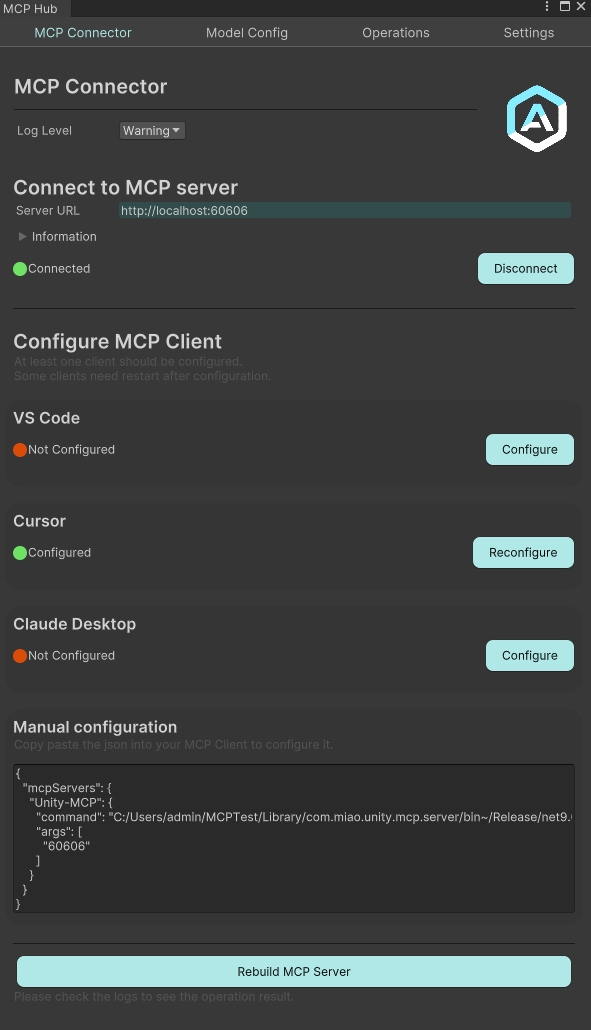
Connect Unity-MCP to LLM client such as Claude or Cursor using integrated AI Connector window. Custom clients are supported as well.
The project is designed to let developers to add custom tools soon. After that the next goal is to enable the same features in player's build. For not it works only in Unity Editor.
The system is extensible: you can define custom tools directly in your Unity project codebase, exposing new capabilities to the AI or automation clients. This makes Unity-MCP a flexible foundation for building advanced workflows, rapid prototyping, or integrating AI-driven features into your development process.
✅New Core Features
🚀 1. Workflow Middleware Architecture
Architecture Overview:
AI Agent → MCP Protocol → McpServer (Workflow Middleware) → Unity Runtime
                              ↓
                        RPC Gateway → ModelUse/Unity etc.
                              ↓
                        Workflow Orchestration Engine
Workflow Architecture
Layer 1: RPC Gateway
- ✅ Dynamic Unity Tool Discovery - Runtime discovery via
ToolRouter_ListAllRPC - ✅ Tool Calls - Auto-generated tool proxies
- ✅ Unified Interface - All RPC calls through unified
IRpcGatewayinterface
Layer 2: Workflow Orchestration
- ✅ Expression Syntax Support -
${input.param},${step.result} - ✅ Conditional Execution - Step conditions and retry policies
- ✅ Multiple Step Types -
rpc_call,model_use,data_transform
2. AI Model Integration & ModelUse API
Provides Unity with complete AI model usage API:
- Bidirectional Communication: Unity Runtime ↔ MCP Server ↔ Agent
- Reverse Model Calls: Unity can actively request Agent's AI model capabilities
- Model Type Support: Text, vision, code analysis and other AI models
- Unified API Interface: Unified access to various AI services through ModelUse API
3. Interactive User Input System
- ✅ Ask User Input Tool - Interactive user input collection
- ✅ Undo & Redo System - Complete undo/redo functionality for GameObject operations
4. Tool System
Added numerous tool features
AI Tools
GameObject
- ✅ Create
- ✅ Destroy
- ✅ Find
- ✅ Modify (tag, layer, name, static)
- ✅ Set parent
- ✅ Duplicate
- ✅ Set Active/Inactive
- ✅ Set Component Active/Inactive
GameObject.Components
- ✅ Add Component
- ✅ Get Components
- ✅ Modify Component
-
- ✅
Fieldset value
- ✅
-
- ✅
Propertyset value
- ✅
-
- ✅
Referencelink set
- ✅
- ✅ Destroy Component
- ✅ Missing Component Detection
- 🔲 Remove missing components
Editor
- ✅ State (Playmode)
- ✅ Get
- ✅ Set
- ✅ Get Windows
- ✅ Layer
- ✅ Get All
- ✅ Add
- ✅ Remove
- ✅ Tag
- ✅ Get All
- ✅ Add
- ✅ Remove
- ✅ Execute
MenuItem - 🔲 Run Tests
Editor.Selection
- ✅ Get selection
- ✅ Set selection
Prefabs
- ✅ Instantiate
- ✅ Create
- ✅ Open
- ✅ Modify (GameObject.Modify)
- ✅ Save
- ✅ Close
Package
- 🔲 Get installed
- 🔲 Install
- 🔲 Remove
- 🔲 Update
Animation
- ✅ Add Event
- ✅ Read Clip
Timeline Manager
- ✅ Create and Attach
- ✅ Add Track
- ✅ List Tracks
- ✅ Add Clip
- ✅ Add Marker
- ✅ Get Marker
- ✅ Add Signal Marker
Environmental Query System
- ✅ Intelligent spatial queries
- ✅ Area of Interest
- ✅ Hard Condition
- ✅ Soft Scoring
- ✅ Weight synthesis
- ✅ Location selection
- ✅ Object placement
Skeleton Analysis & Visualization
- ✅ Skeleton Hierarchy Analysis
- ✅ Bone Reference Detection
Interactive Tools
- ✅ Wait User Input
Assets
- ✅ Create
- ✅ Find
- ✅ Refresh
- ✅ Read
- ✅ Modify
- ✅ Rename
- ✅ Delete
- ✅ Move
- ✅ Create folder
Scene
- ✅ Create
- ✅ Save
- ✅ Load
- ✅ Unload
- ✅ Get Loaded
- ✅ Get hierarchy
- ✅ Search (editor)
- ✅ Raycast (understand volume)
Camera
- ✅ Camera Control
- ✅ Screen Capture
Materials
- ✅ Create
- ✅ Modify (Assets.Modify)
- ✅ Read (Assets.Read)
- ✅ Assign to a Component on a GameObject
Shader
- ✅ List All
Scripts
- ✅ Read
- ✅ Update or Create
- ✅ Delete
Scriptable Object
- ✅ Create
- ✅ Read
- ✅ Modify
- ✅ Remove
Debug
- ✅ Read logs (console)
Component
- ✅ Get All
AI Model Tools
- ✅ ModelUse Text
- ✅ ModelUse Vision
- ✅ ModelUse Code
Physics Tools
- ✅ Ray casting
- ✅ Sphere casting
- ✅ Box casting
- ✅ Capsule casting
- ✅ Overlap
- ✅ Line Of Sight
- ✅ MultiRay
Layer Tools
- ✅ List Layers
- ✅ Calculate LayerMask
- ✅ Decode LayerMask
- ✅ Scene Analysis
🚀 TODO Roadmap
Architecture Layer
McpServer Aggregator
- 🔲 Multi-model compatibility
- 🔲 Multi-upstream data flow
- 🔲 Unity integration
- 🔲 3dsMax integration
- 🔲 Maya integration
- 🔲 Houdini integration
- 🔲 Figma integration
- 🔲 Custom middleware system
- 🔲 Shared context
- 🔲 Pipeline parallel execution
Workflow Engine
- ✅ Data flow orchestration
- ✅ Pipeline parallel execution
- 🔲 Error handling & rollback
- 🔲 Workflow templates
AI Tool Layer
Animation & Rigging
- 🔲 Animator state machine editor
- 🔲 Animator transition tools
- 🔲 AnimationClip processing
- 🔲 Bone detection tools
- 🔲 Attachment point tools
Advanced EQS
- 🔲 Enhanced spatial intelligence EQS
Visual Programming
- 🔲 Unity VisualScripting generation
- 🔲 Behavior Designer integration
- 🔲 NodeCanvas integration
- 🔲 Custom node creation
- 🔲 Flow graph analysis / test
UI & UX Tools
- 🔲 UXML\USS generation
- 🔲 USS generation
- 🔲 UI Toolkit integration
- 🔲 Data binding
Asset Layer
Asset Intelligence
- 🔲 Feature recognition
- 🔲 Asset indexing
- 🔲 Embedding / Metadata generation
- 🔲 Similarity detection
- 🔲 Auto-categorization
- 🔲 Dependency mapping
Legend: ✅ = Implemented & available, 🔲 = Planned / Not yet implemented
- Editor Automation: Provides rich APIs for automating Unity Editor operations
- AI Integration: Supports connection and interaction with AI models
- Asset Management: Provides tools for managing and manipulating Unity assets
- Animation Tools: Tools for reading and modifying animation clips
- Timeline Tools: Tools for manipulating Unity Timeline assets
- Component Operations: Provides APIs for accessing and modifying game object components
- Selection Tools: Used to get and set selections in the Unity Editor
- EQS Tools: Environmental Query System tools for intelligent spatial queries, location selection, and object placement
- RayCast Tools: Physics raycasting tools supporting multiple ray types (ray, sphere, box, capsule) and collision detection modes
- Console Logs: Get Console logs with a filter
- Streamlined and compressed the number of tools, ensuring that the model's performance doesn't degrade due to excessive tool calls.
Installation
- Install .NET 9.0
- Git Clone this repository locally and place it in Unity's Packages directory with the path Packages/com.miao.mcp/{repository content}
- Manually add to manifest.json:
{
    "scopedRegistries": [
        {
        "name": "package.openupm.com",
        "url": "https://package.openupm.com",
        "scopes": [
            "org.nuget"
        ]
        }
    ]
}
Usage
- Make sure your project path doesn't have a space symbol " ".
- ✅
C:/MyProjects/Project- ❌
C:/My Projects/Project
- Open Unity project, go 👉
Window/MCP Hub.
- Install MCP client
- Install Cursor (recommended)
- Install Claude
- Sign-in into MCP client
- Click
Configureat your MCP client.
- Restart your MCP client.
- Make sure
AI Connectoris "Connected" or "Connecting..." after restart. - Test AI connection in your Client (Cursor, Claude Desktop). Type any question or task into the chat. Something like:
Explain my scene hierarchy
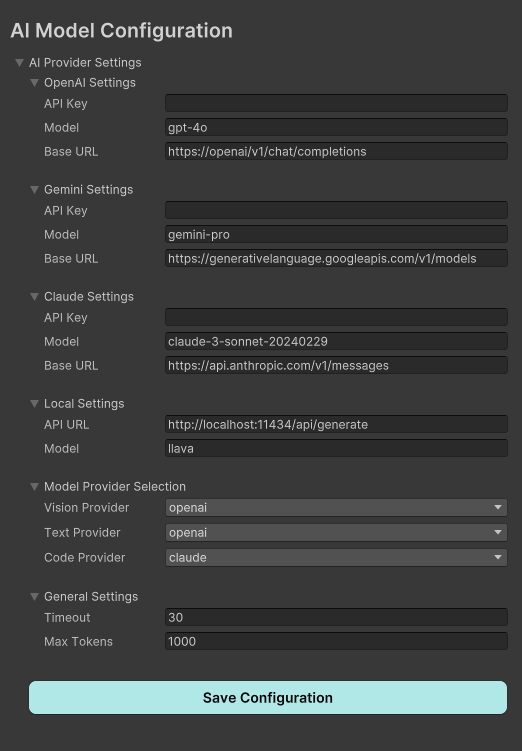
AI Configuration (Optional)
Add custom tool
⚠️ It only works with MCP client that supports dynamic tool list update.
Unity-MCP is designed to support custom tool development by project owner. MCP server takes data from Unity plugin and exposes it to a Client. So anyone in the MCP communication chain would receive the information about a new tool. Which LLM may decide to call at some point.
To add a custom tool you need:
- To have a class with attribute
McpPluginToolType. - To have a method in the class with attribute
McpPluginTool. - [optional] Add
Descriptionattribute to each method argument to let LLM to understand it. - [optional] Use
string? optional = nullproperties with?and default value to mark them asoptionalfor LLM.
Take a look that the line
MainThread.Instance.Run(() =>it allows to run the code in Main thread which is needed to interact with Unity API. If you don't need it and running the tool in background thread is fine for the tool, don't use Main thread for efficiency purpose.
[McpPluginToolType]
public class Tool_GameObject
{
    [McpPluginTool
    (
        "MyCustomTask",
        Title = "Create a new GameObject"
    )]
    [Description("Explain here to LLM what is this, when it should be called.")]
    public string CustomTask
    (
        [Description("Explain to LLM what is this.")]
        string inputData
    )
    {
        // do anything in background thread

        return MainThread.Instance.Run(() =>
        {
            // do something in main thread if needed

            return $"[Success] Operation completed.";
        });
    }
}
Add custom in-game tool
⚠️ Not yet supported. The work is in progress
🎯 Middleware Workflow
Workflow Definition Syntax:
{
  "id": "simple_equipment_binding",
  "steps": [
    {
      "id": "find_character",
      "type": "rpc_call",
      "connector": "unity",
      "operation": "GameObject_Find",
      "parameters": { "name": "${input.characterName}" }
    },
    {
      "id": "validate_character",
      "type": "model_use",
      "connector": "model_use",
      "operation": "text",
      "parameters": { "prompt": "Validate: ${find_character.result}" }
    }
  ]
}
Contribution
Feel free to add new tool into the project.
- Fork the project.
- Implement new
toolin your forked repository. - Create Pull Request into original Unity-MCP repository.
Attribution
This project is based on the original open-source project by Ivan Murzak and has been extensively modified and extended by MiAO.
Original Project
- Author: Ivan Murzak
- Original Repository: https://github.com/IvanMurzak/Unity-MCP
- License: Apache License 2.0
Modifications and Extensions
- Modified by: MiAO (ai@miao.company)
- Year: 2025
- Major Changes: [List major modifications here]
We thank the original author Ivan Murzak for his contributions to the open-source community!
License
This project is licensed under the Apache License 2.0 - see the LICENSE file for details.
The project includes components from the original work by Ivan Murzak, also licensed under Apache License 2.0.
README copy captured when this server was indexed; it may lag the repository. The original is authoritative.